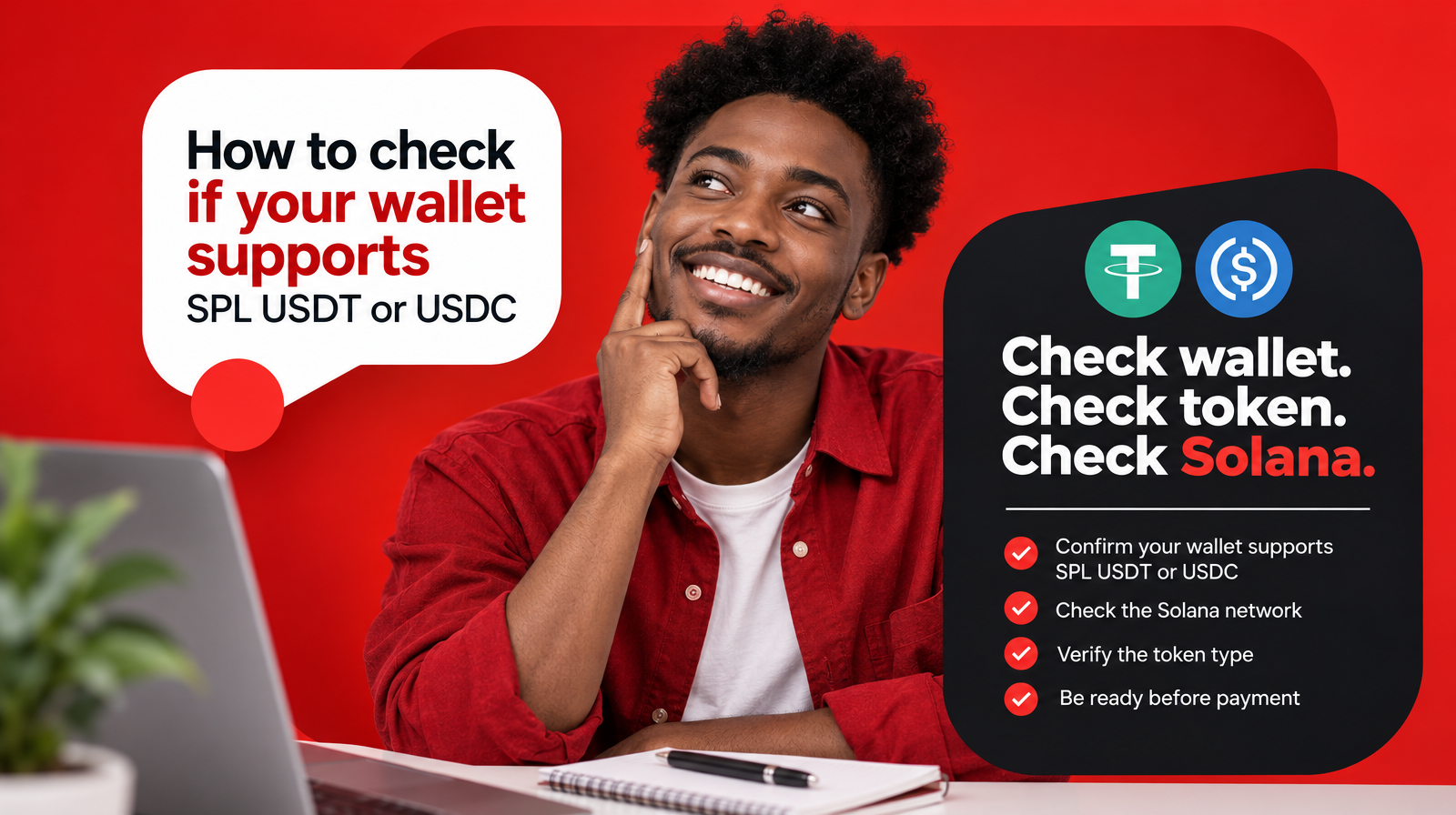
Before buying USDT or USDC with Naira through Muno, confirm that your destination wallet can receive the selected asset as an SPL token on Solana. Checking only that your wallet supports “crypto” or that it displays a USDT or USDC balance is not enough.
You should verify four separate details:
- Wallet compatibility: the wallet can receive tokens on Solana.
- Selected asset: you are receiving USDT or USDC, not the other one.
- Network: the selected network is Solana.
- Destination address: the address belongs to your wallet and is the one used for the current purchase.
Muno currently supports USDT and USDC as SPL tokens on Solana for buying and selling with Naira in Nigeria. For a purchase, you pay in Naira and the purchased crypto is delivered to your own wallet after payment confirmation. The checks below help you confirm that your wallet is ready before you pay.
What does it mean for a wallet to support SPL tokens?
SPL tokens are tokens that operate on the Solana network. Therefore, a wallet that supports SPL USDT or USDC must be able to do more than hold a general cryptocurrency balance. It must support:
- The Solana network
- Receiving tokens issued or handled on Solana
- The specific asset you selected, such as USDT or USDC
- A compatible Solana destination address
A wallet may support Solana while still presenting assets differently from another wallet. Some wallets show USDT or USDC automatically. Others may require you to search for the token or enable its display before the balance appears.
This creates an important distinction:
Having a wallet is not the same as confirming that the wallet can receive the specific SPL token you selected.
A wallet address saved from a previous transaction, or an account that holds another Solana asset, does not by itself confirm that it is ready for SPL USDT or USDC. Check the asset and network together.
The four-part wallet-readiness check
Use this framework before starting a Muno purchase with Naira.
1. Check that the wallet supports Solana
Open the wallet and look for Solana in its supported networks, assets or receive options.
Depending on the wallet, you may see:
- Solana
- SOL
- SPL tokens
- A Solana receive address
- USDT or USDC with Solana shown as the network
The exact wording varies between wallets. The useful question is whether the wallet provides a way to receive tokens on Solana, rather than merely displaying USDT or USDC somewhere in the app.
If the wallet shows several network choices for the same asset, do not select one based only on the token name. The network must match the purchase instructions.
2. Check the exact asset: USDT or USDC
Decide which asset you want to buy before copying your wallet address.
If you selected USDT in the Muno purchase flow, confirm that your wallet can receive USDT on Solana. If you selected USDC, confirm that it can receive USDC on Solana.
USDT and USDC are separate assets. Seeing one in your wallet does not automatically confirm support for the other.
Before payment, compare these two places:
- The asset selected in your Muno purchase
- The asset selected or displayed in your wallet’s receive screen
They should match exactly. Do not rely only on a symbol, colour or logo. Read the asset name and check the network label shown by the wallet.
3. Check the network separately
Selecting USDT or USDC is not enough if the wallet also asks you to select a network.
For Muno’s current supported route, the relevant network is Solana, and the supported assets are USDT and USDC as SPL tokens.
A wallet might show multiple networks for USDT or USDC. In that situation, choose Solana only when the wallet clearly identifies it as the network for the receive address you are using.
Treat these as two separate selections:
- Asset: USDT or USDC
- Network: Solana
A correct asset on an incorrect network is not the same as the supported Solana asset. Pause if the wallet does not clearly show both details.
4. Check the destination address
Use the receive address generated or displayed by your own wallet for the selected Solana asset.
Before copying it, confirm:
- You are in your own wallet account
- The receive screen is for USDT or USDC
- Solana is selected as the network
- The address is copied completely
- The address shown in the purchase flow matches the wallet you intend to use
Do not share your recovery phrase or private key. Muno needs the destination wallet address for delivery, not access to the wallet itself.
It is also sensible to compare the beginning and end of the address after pasting it into the purchase flow. This is only a visual check, so use the wallet’s copy function rather than typing the address manually.
How to check whether your wallet supports USDT on Solana
If you want to buy USDT with Naira, follow this sequence:
- Open your wallet’s Receive function.
- Search for USDT.
- If the wallet displays network options, select Solana.
- Confirm that the receive screen identifies the asset and network together.
- Copy the resulting wallet address.
- Return to the Muno purchase flow and check that you selected USDT and entered your own Solana wallet address.
- Review the purchase details before completing payment.
If the wallet shows USDT but does not show Solana as a network option, do not assume that the displayed USDT is the SPL version. Stop and check the wallet’s documentation or ask its support team for confirmation.
How to check whether your wallet supports USDC on Solana
For USDC, use the same process with the asset name changed:
- Open the wallet’s Receive screen.
- Search for USDC.
- Select Solana if the wallet asks for a network.
- Confirm that the wallet identifies the receiving route as USDC on Solana.
- Copy the address from that screen.
- Compare it with the destination entered for your Muno purchase.
- Complete payment only after the asset, network and destination are clear.
A wallet that supports USDC on one network should not automatically be treated as supporting USDC on Solana. Confirm the network shown for the specific receiving option.
Is selecting USDT or USDC enough?
No. You must also select or confirm Solana.
The asset and network describe different parts of the transaction. USDT tells you which token you are buying; Solana tells you where that token is being sent. The supported route requires both details to align.
For example:
- USDT + Solana: the intended route when buying SPL USDT through Muno
- USDC + Solana: the intended route when buying SPL USDC through Muno
- USDT or USDC + another network: not the same route
If your wallet hides the network selection, look for it under details, receive options or supported networks. If you still cannot identify it, do not guess.
Can you use a wallet address from an old purchase?
You may be able to use an address from an earlier purchase if you still control the wallet and the wallet currently supports the same asset on Solana. However, an old address should not be treated as automatically ready.
Before reusing it, confirm:
- The address still belongs to your wallet
- You can access the wallet
- The wallet supports the selected asset
- Solana is the selected network
- The address has not been copied from an old screenshot or message incorrectly
- The current Muno purchase instructions accept that destination
For a Muno purchase, use the destination wallet details shown for the current transaction and review them before payment.
This is different from selling crypto through Muno. Muno’s sell flow generates a fresh deposit address for each swap, tied to that transaction and expiring after it. If you are selling USDT or USDC, do not send funds to an old Muno deposit address. Use the current address shown for the current swap.
What to do if you cannot confirm the token or network
Use this stop-and-check decision tree:
You can see the asset and Solana network
Proceed to compare the destination address and purchase details carefully.
You can see the asset, but not Solana
Pause. Do not assume the wallet’s version of USDT or USDC is the SPL version. Check the wallet’s support information or contact its support team.
You can see Solana, but not the selected asset
Pause. Supporting SOL or another Solana asset does not automatically confirm support for SPL USDT or USDC. Confirm the specific token before paying.
You cannot tell whether the address is a Solana address
Do not submit the address. Ask the wallet provider or Muno’s dedicated customer support for clarification before starting the purchase.
The wallet and Muno show different assets or networks
Do not proceed until the details match. Changing the selection at random can make the transaction harder to verify.
What happens after payment confirmation through Muno?
After you select USDT or USDC, provide your own compatible Solana wallet destination and complete the Naira payment, Muno’s purchase route moves through payment confirmation. The purchased crypto is then delivered to your own wallet after payment confirmation.
The wallet check should happen before payment because it confirms that the destination is prepared for the asset you selected. It does not replace reviewing the current purchase instructions, amount and transaction details shown by Muno.
Final checklist
Before buying USDT or USDC with Naira, confirm:
- My wallet supports Solana.
- My wallet can receive the specific asset I selected.
- I selected USDT or USDC consistently in both places.
- The network is Solana.
- The wallet destination belongs to me.
- I copied the address from the wallet’s current receive screen.
- I reviewed the current Muno purchase instructions.
- I have not relied on an old address without checking it.
- I will stop if the token or network is unclear.
For Muno buyers in Nigeria, the key rule is simple: confirm the wallet, asset, network and destination separately before paying. When all four checks point to the same route, you have a clearer basis for buying SPL USDT or USDC with Naira and receiving the selected asset in your own Solana wallet.